
DeeperDive troubleshooting
Taboola’s ongoing quality assurance processes ensure that questions, responses and summaries generated by DeeperDive meet high standards of quality and accuracy. If you wish to regenerate a question, influence a response or pause DeeperDive for any reason, please follow the instructions below.
Managing Questions, Responses and Summaries
Install the Taboola Newsroom Chrome extension and sign in with your Newsroom account.
Navigate to the article in question and ensure the Newsroom extension is activated by toggling on the blue switch.
The first time enabling the extension, you might encounter an error message that the page is not recognized. There will be a link within the error message to force the extension to re-cache the page. Click that link and then refresh the page to enable the extension.
With the Chrome extension toggled on, switch to the DeeperDive tab. From this view you can disable DeeperDive on the page or you can enable the moderation layer to make adjustments with any output. You also have visibility into any guidance already applied to DeeperDive output on the page and are able to edit or undo it.
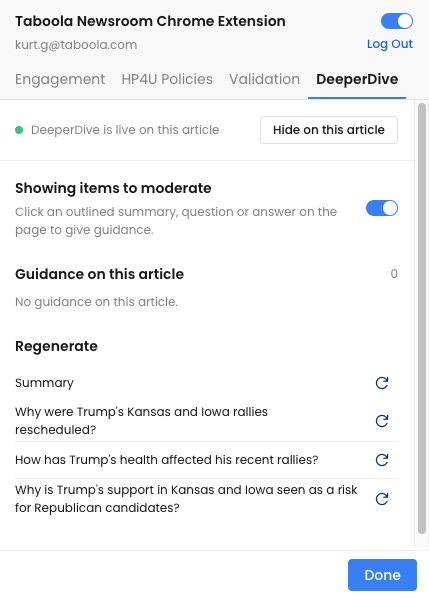
After enabling the moderation layer, you can hover over a DeeperDive summary, question or response to select it — either on the article page or the DeeperDive surface. A summary, question or response can be influenced, and questions and summaries can be regenerated.
Regeneration will ask the system to create a new replacement question or re-summarize the article. After regenerating the artifact, it will take about 2 minutes for the new question or summary to appear. To see the new question, you will have clear cache and cookies on your browser or open in a new clear browser.
“Additing” vs. editing
The most powerful management tool will be influencing DeeperDive output, creating a rule or rules that target a summary, question or response. Essentially, you are adding a microprompt to guide the final output.
To make these small adjustments in a summary, question or response, select “influence.” This will open a panel and you will be asked via a chat interface how you want the output to be changed. You may want to add a title to a name or maybe spell out an acronym. In conversational language, just type what you’d like to happen. The system will then evaluate your statement. If it can be simplified, it will offer a suggestion. You can accept or reject that suggestion. It will then reprocess the output with the new guidance. You then will review, side by side, the new output against the old and either accept and republish the changes or reject and continue to refine it. When satisfied, accept and publish.
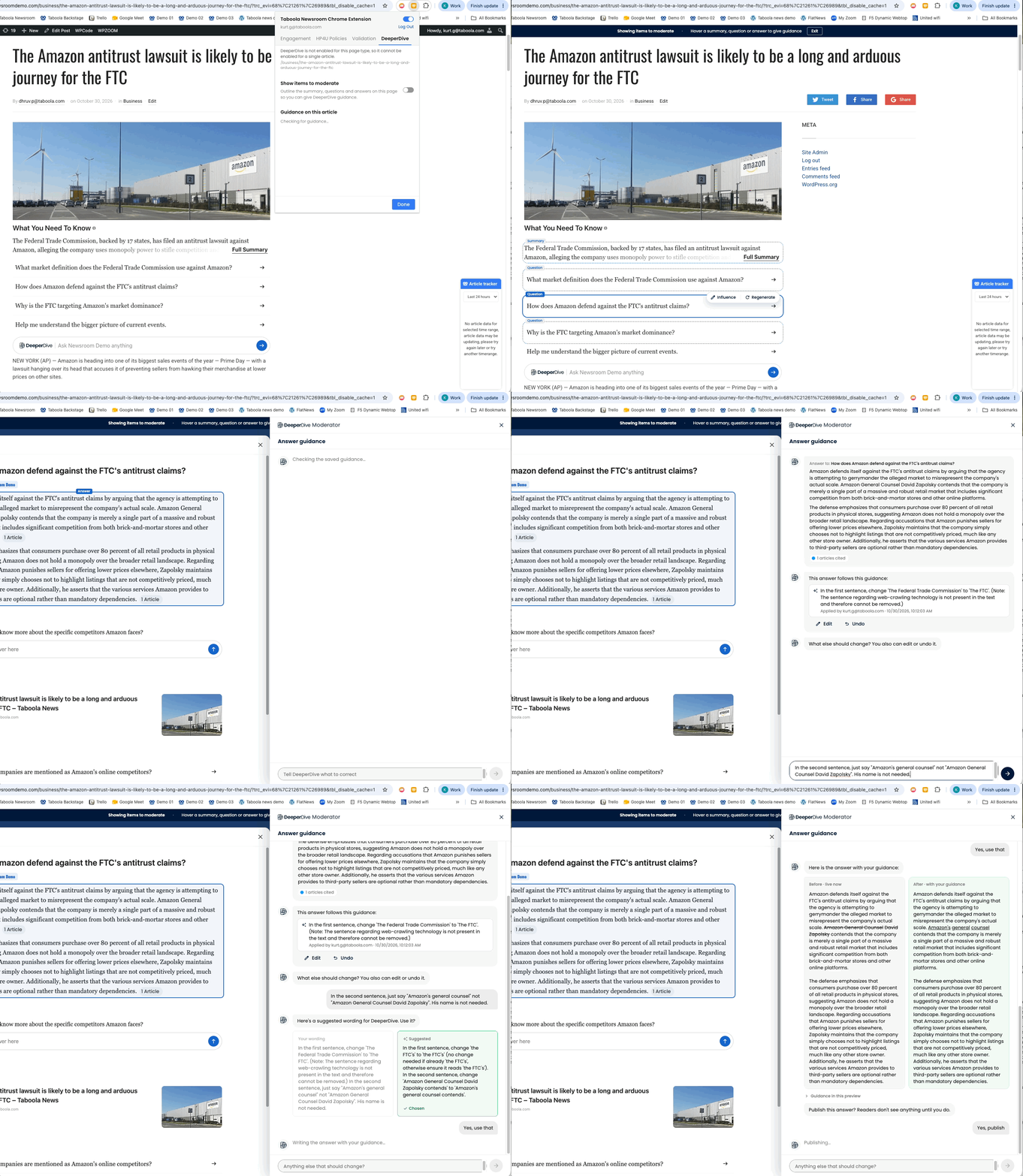
Because you’re not editing a fixed output but are adding a prompt to guide current and future output, if the story is updated and republished, the guidance you added is durable and will persist to future iterations of summaries, questions and responses. Simply editing the text would solve the problem once but provide no future guardrails. In the world of large language models, “additing” outpaces “editing” every time.
DeeperDive killswitch
For any major issues, DeeperDive can be fully disabled at a site level using the killswitch in Newsroom. The killswitch page can be accessed in the left rail nested beneath the DeeperDive tools.
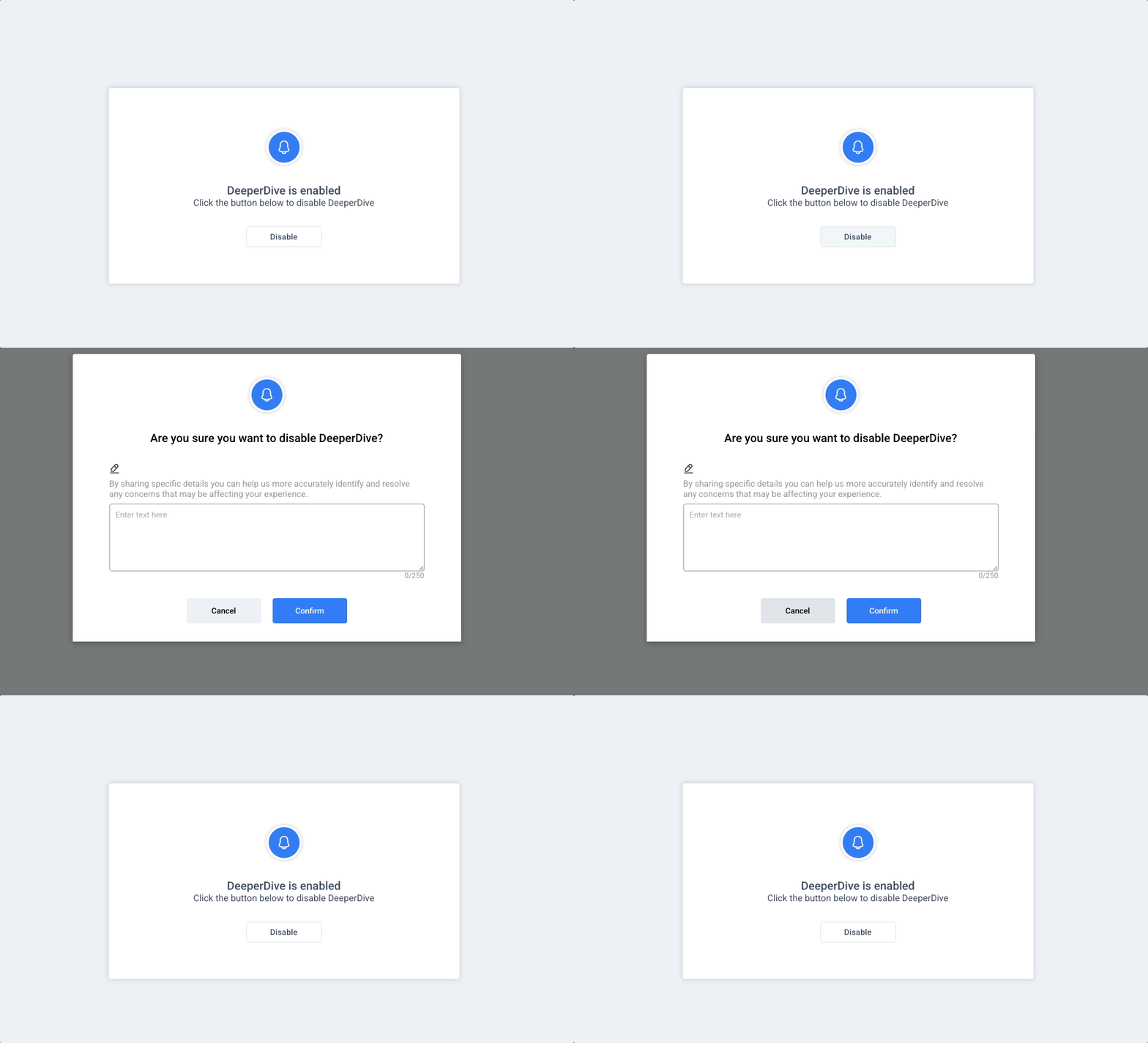
Triggering the killswitch does alert our teams, so including information as to the nature of the issue in the optional text field will help us better respond.