
DeeperDive Control Center for promoted questions
Overview
DeeperDive is an AI answer engine designed to help publishers build loyalty and engagement by sparking user curiosity, transforming a publisher’s content archive into an interactive, conversational agent that lives directly on its website or app.
While the system already creates compelling suggested questions based on the articles and topics covered, there are times when an editor may want to inject a question into the system to be served in the DeeperDive experience.
For those opportunities, DeeperDive offers the Control Center, where subject-matter experts can create and shape suggested questions to help guide users to specific outcomes. One example might be creating a suggested question like “What are the best Mother’s Day gifts under $100?” to increase the exposure of Mother’s Day gift guide articles to meet ecommerce objectives. Others also could include
- Time-sensitive events; “What’s the World Cup schedule?”
- High-impact offerings like investigations or analysis; “What are three takeaways from the Panama Papers?”
- User guides around niche subjects; “Where do I cast my ballot on election day?”
- Explaining or emphasizing trends in the news; “Why is Olympics figure staking trending?”
Primary Dashboard
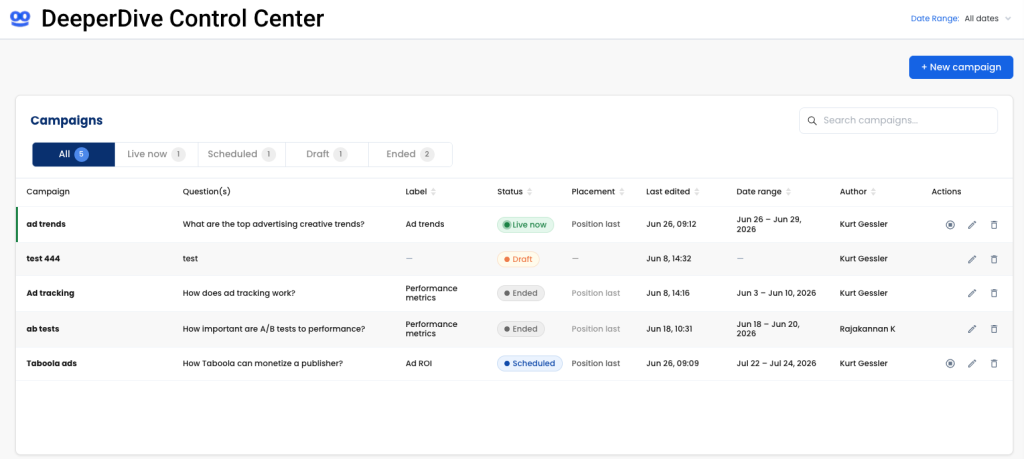
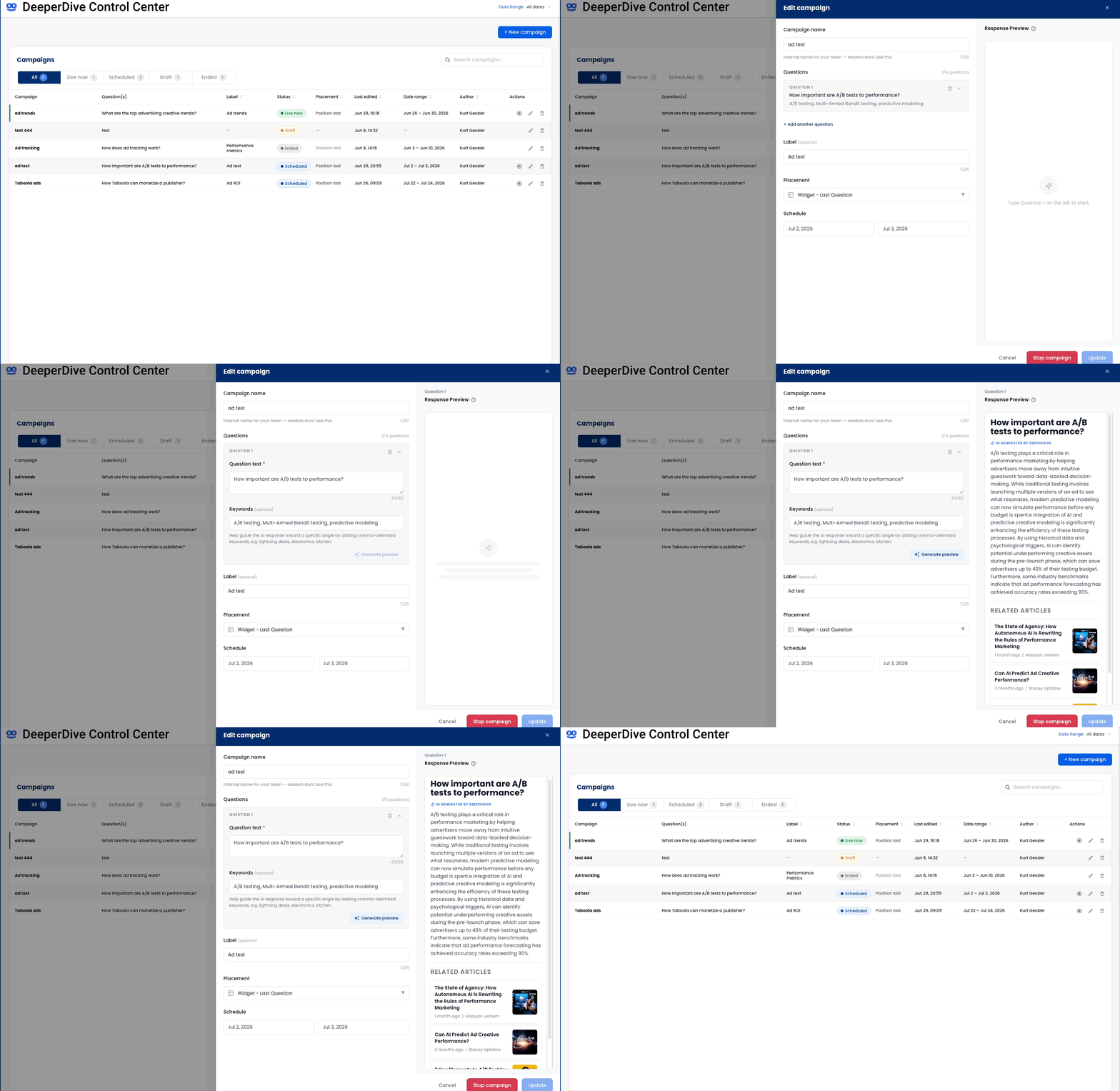
Control Center is accessed via Newsroom. At its core are Campaigns. A Campaign is a single suggested question or a bundle of suggested questions. You can launch a single promoted question to your entire audience; the question will appear on every page containing Deeper Dive. Alternatively, you can launch bundle up to four questions to target smaller subsets. DeeperDive automatically distributes bundle variants evenly among your users — splitting traffic into 50%, 33.33%, or 25% buckets depending on the number of questions.
The lobby page of the Control Center allows a user to view all the Campaigns that have been created and their state, whether they are live or just a work in progress. Each DeeperDive Campaign can be filtered by state, by date or by keywords in the questions or metadata (via the search bar).
A Campaign has four states: Live Now, Scheduled, Draft and Ended. Each state represents the following:
- Live Now: The Campaign is actively being served
- Scheduled: A Campaign that will go live on a specific date for a predetermined length of time
- Ended: Campaigns that have expired or a live Campaign that was deliberately ended
- Draft: A Campaign that was saved without a placement and/or start date
By using these states and tools, a user can quickly determine, for example, what campaigns ran last month by toggling to the Ended state tab and, from the date picker, selecting “Last Month.” Each column also is sortable, allowing users to cluster and review all the Draft state Campaigns without filtering.
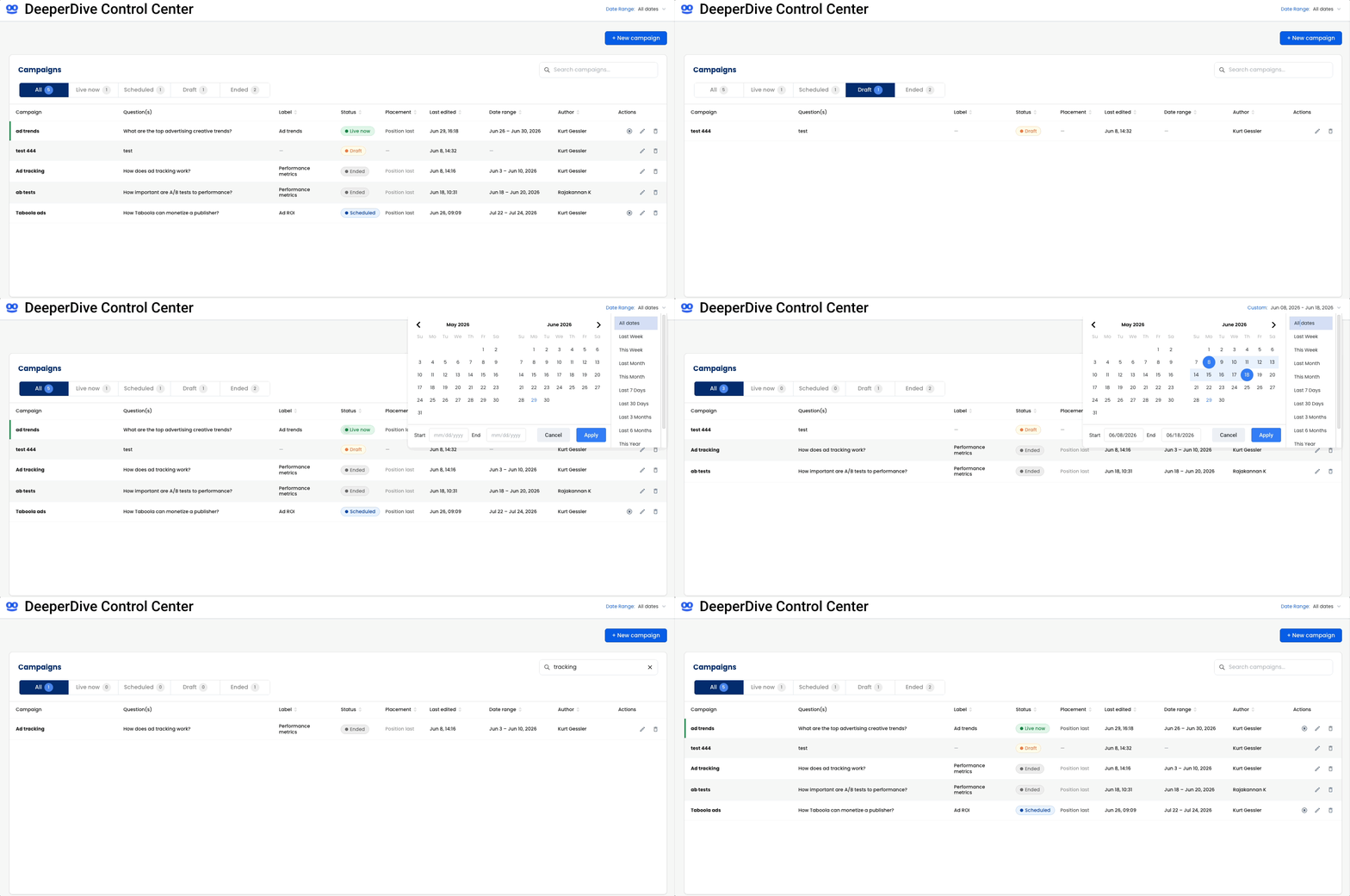
In addition to navigation, the lobby page also serves as an audit trail of who created the Campaign and when it was last edited.
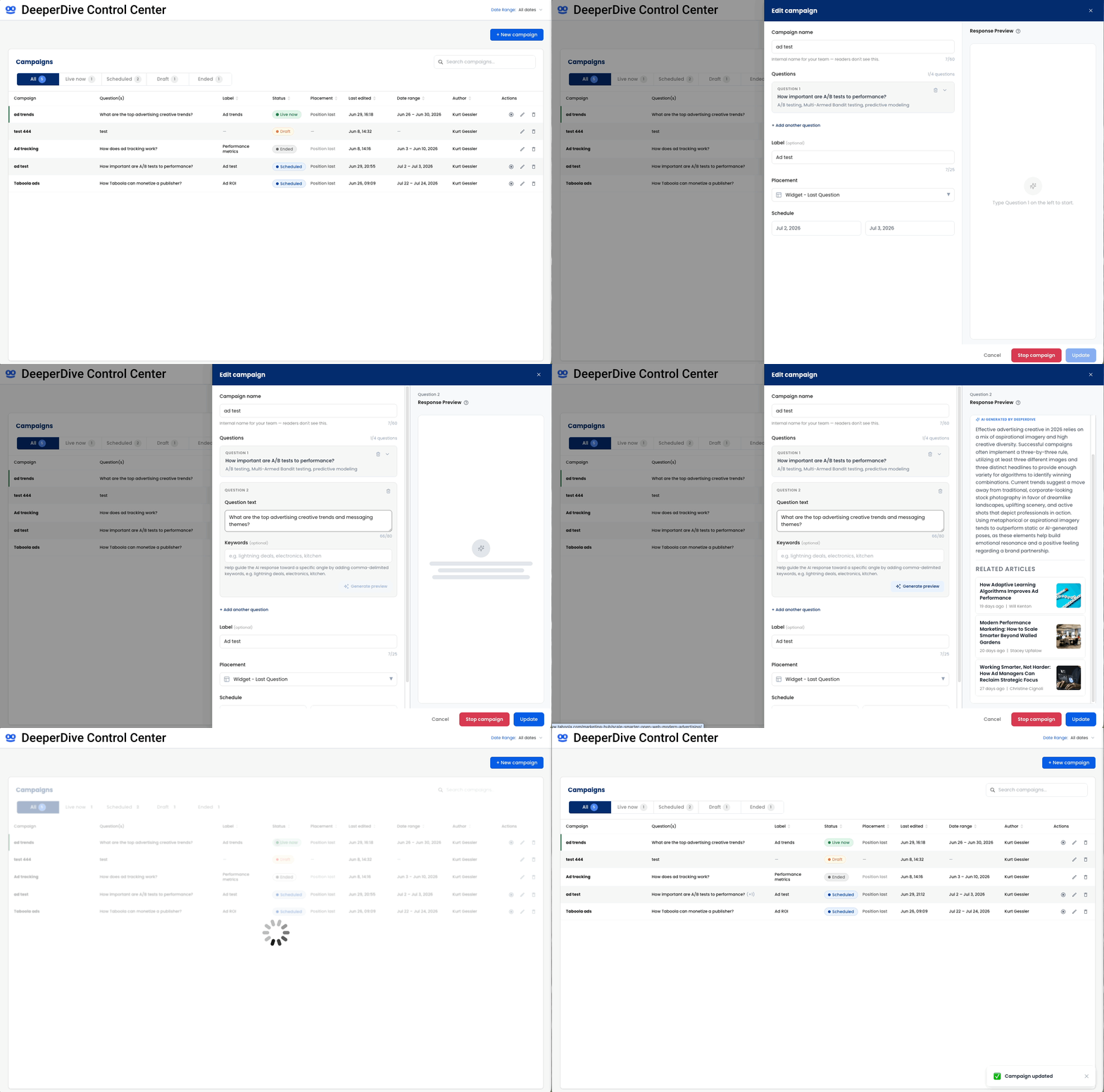
Lastly, you can quickly stop, edit, or delete a campaign using the inline icons located on the far right of each campaign row.
If delete is selected, a confirmation notification will be shown. If accepted, this will permanently delete the draft and any cached previews. This cannot be undone.
Creation Flow
To create a new DeeperDive Campaign, click the blue “+ New Campaign” button in the upper right of the lobby page. This opens a fly-out panel which allows a user to create suggested questions, preview the response and related articles, attach them to a placement, and schedule the Campaign or make it live.
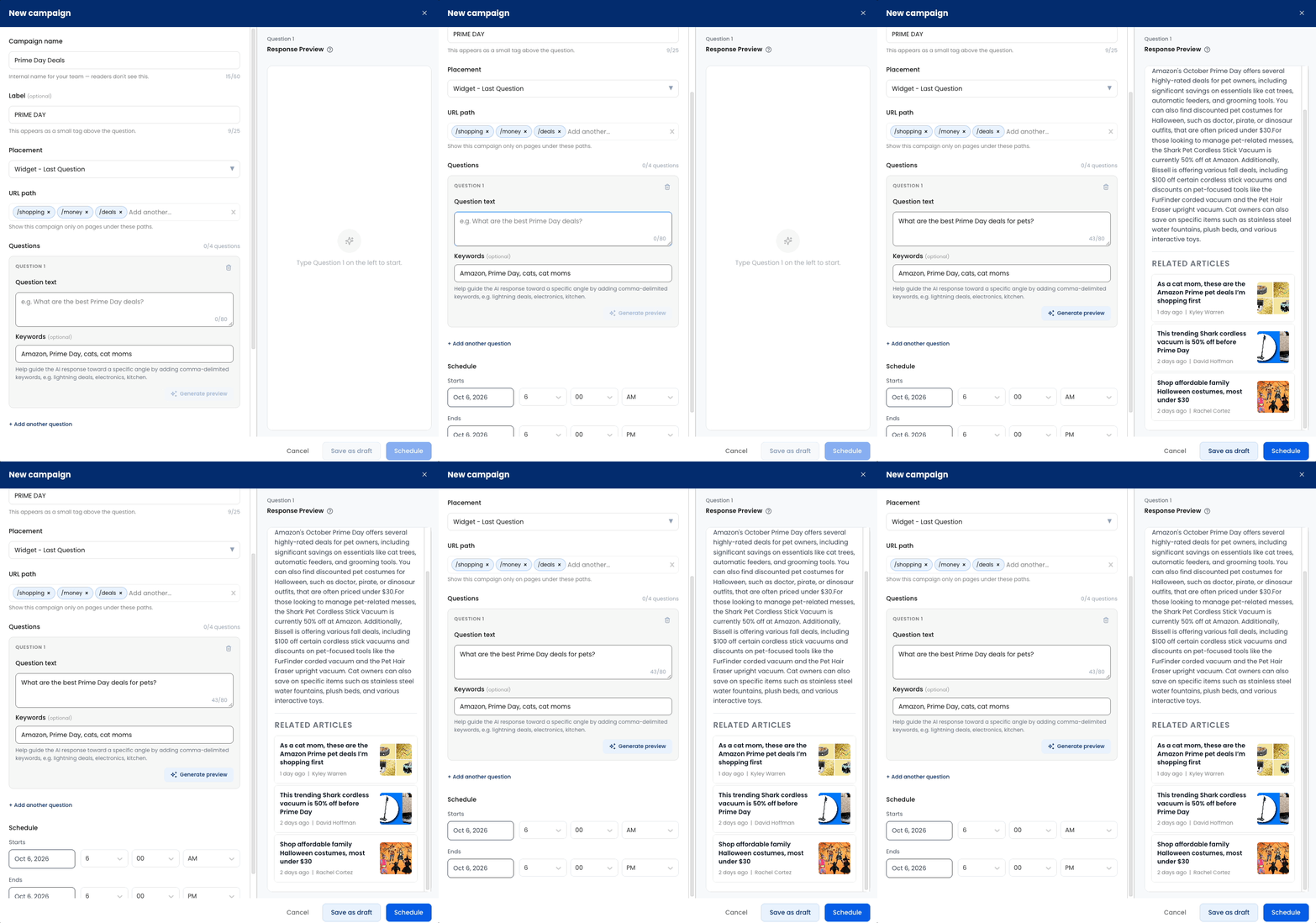
Once the creation panel is open, a user has to choose at least a campaign name, question, placement and schedule to go live. However, more options exist to validate the output and improve outcomes.
Campaign name
This field is for internal use only within DeeperDive. It’s for documentation and filtering and is not externalized.
Label
While optional, this field is highly recommended because it provides end users with context for the suggested question or questions. This is important because on content-level pages, a user may be expecting only directly related suggested questions and this helps reset user expectations. Limit this to a 2–3 word phrase, such as “World Cup,” “Winter Olympics,” or “Prime Day deals.”
Placement
There is currently one placement available for Campaigns — the last question of the DeeperDive article and homepage unit. The “last” position is dynamic, whether a publisher has three or four suggested questions. It’s always at the bottom. As new placements are created, like Question of the Day, they will be added.
URL path
If left blank, it will be shown across the entire site. If you select a path like /sports/ or /news/ news, will be only render on pages where the URLs contain that exact text. You can select multiple paths if you want your promoted question to be shown on only /entertainment/ and /dining/ paths, for example.
Question text
This is the most important field as it represents the actual text of the suggested question or questions. The question should be under 80 characters. A compelling suggested question is an open-ended, thought-provoking inquiry that sparks curiosity and drives exploration.
As above, you can create up to four suggested questions within a Campaign by clicking the “Add another question” text. Each question supports its own Keywords field but shares the common Label text. In the lobby page, Campaigns with multiple questions will be denoted with a +1, +2 or +3 icon to indicate additional questions not shown.
Keywords
These are an optional field to help give the AI response additional framing. Is this Iran War question more about the economic impact or the societal impact? Then add comma-delimited keywords to help narrow the response. Note: The keywords are generally gentle nudges to the prompt. The question itself carries more weight.
Generate preview
Once you create a suggested question or questions and keywords, you can preview the response and related articles by clicking Generate Preview. The response is generated via the same AI process as a standard suggested question. The top three related articles by relative topic distance also are shown. If the preview meets your expectation, you can proceed with scheduling. If it needs refinement, tweak the question and keywords and preview again until satisfied.
Schedule
To make a Campaign live, use the calendar tools to select the date range it should run. To make it live immediately, select the current date and time as a start date and whatever end date and time is desired. Your Campaign also can be created and scheduled to go live in the future.
If a user attempts to schedule or make live a campaign in a placement that conflicts with a live or previously scheduled campaign, the user will get a warning of the conflict. Two different Campaigns cannot be scheduled for the same placement at the same time. If there’s a conflict, the user can save the Campaign as draft and either adjust the original Campaign or the latest one.
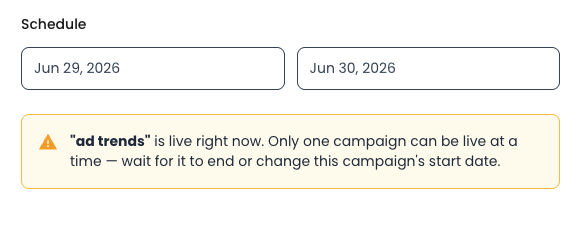
It’s generally advised to not publish Campaigns for longer than two days, even shorter depending on the return frequency of your audience. By that time, your loyal users likely have had an opportunity to engage with the question and you will see better engagement with a standard contextual suggested question or a new promoted question.
To unpublish the question or questions in a Campaign, adjust the date in the calendar or use the stop button tool from the Control Center lobby page.
Question of the Day
In addition to a promoted question, the Control Center also can be used to manage the DeeperDive Question of the Day unit. This is a standalone placement not connected to the primary DeeperDive unit. It supports a single Campaign featuring 1-4 questions.
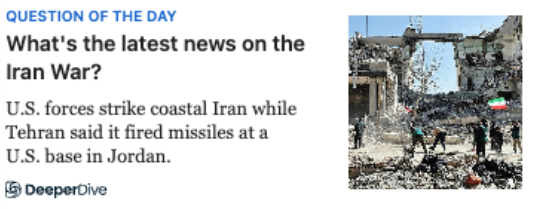
Unlike a standard promoted question, QOTD also features in addition to the question(s) a short text description and a thumbnail image. If a user selects the Question of the Day placement from the pulldown, these additional fields are exposed in the panel UI.
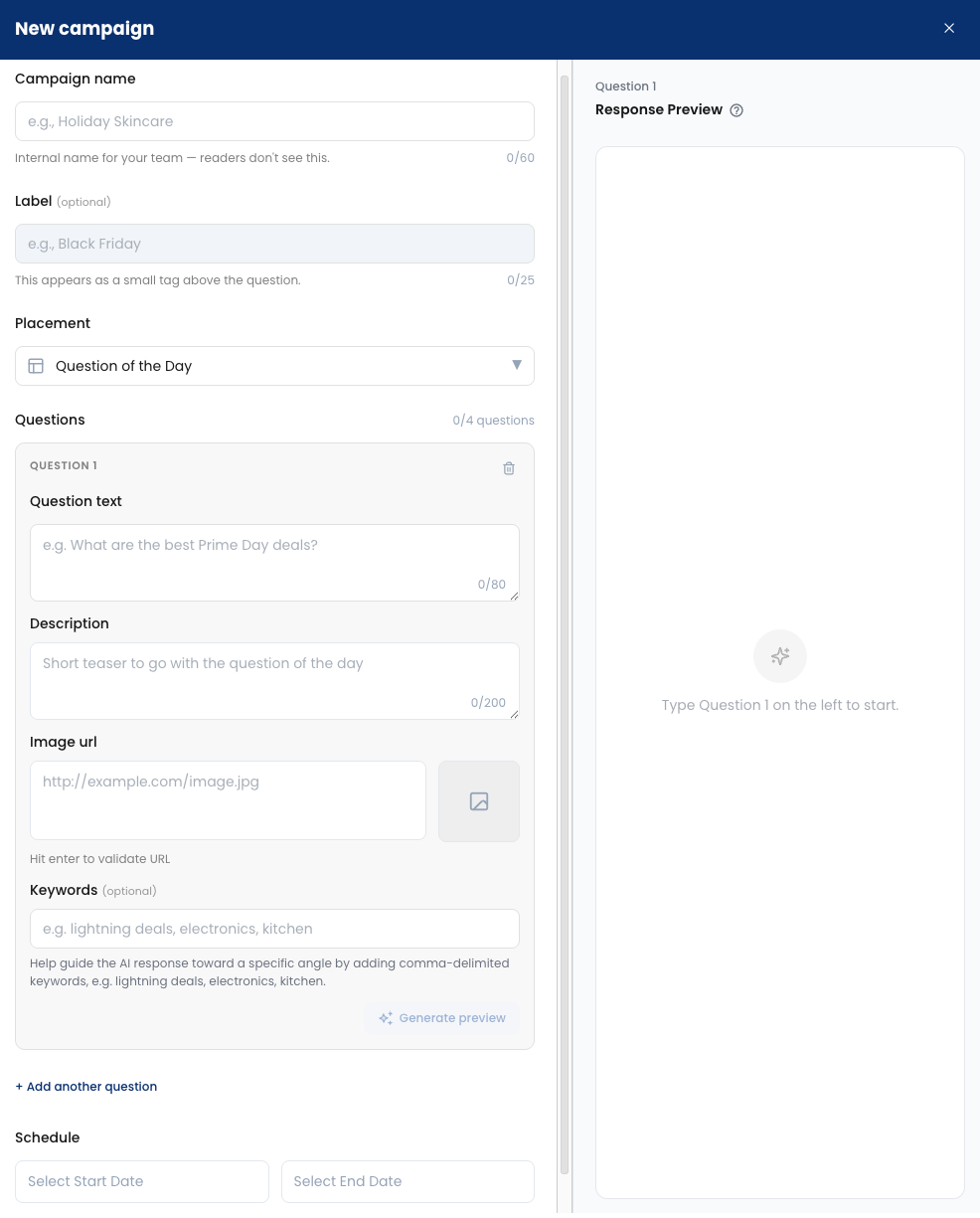
Question of the Day descriptions are capped at 200 characters. The image URL field will validate and supports most image types, including PNG, JPG, SVG and GIF. The label always will read “Question of the Day.”
Because it is a different placement, a user can schedule promoted question Campaigns and a Question of the Day Campaign concurrently without conflict. However, users will be blocked from scheduling overlapping Question of the Day Campaigns.
Performance
The performance of Campaigns of suggested questions will be added to the DeeperDive engagement dashboard. Each question will be tracked under the Promoted Question category. For more information on DeeperDive analytics, consult the knowledge base.