
Filters for Top Articles
The Top Articles dashboard shows the ranking of articles by pageviews or engagement metrics such as conversions or time on page. The dashboard includes filters for Byline, Article Category, Referral Source, and Referral Category that will help you drill down for valuable insights. Let’s explore how to use each one.
Byline Filter
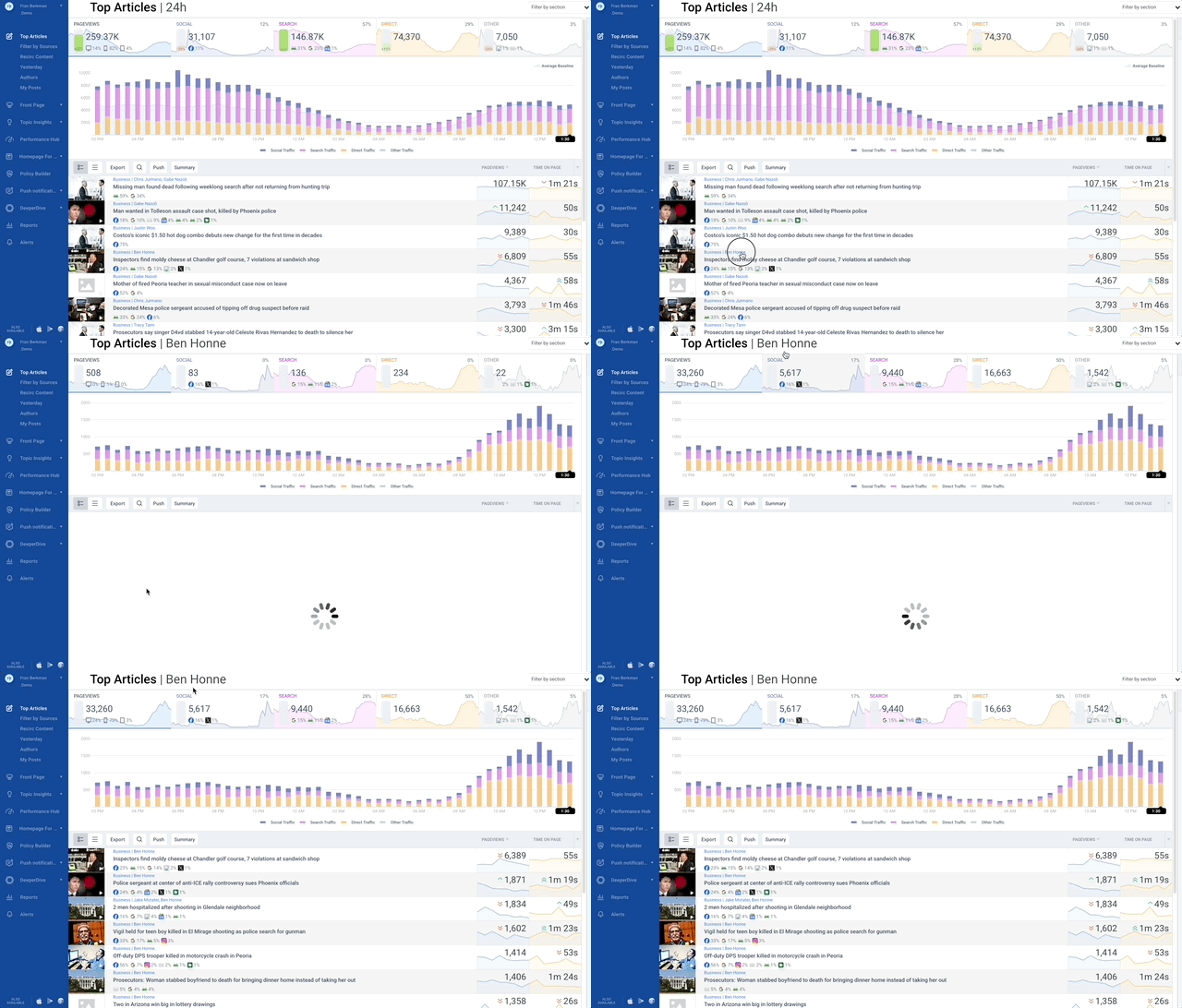
Initiate the byline filter by simply clicking on one of the bylines in the Top Articles dashboard. The bylines themselves serve as links to a sub-dashboard that’s specific to that byline. This sub-dashboard will show all of the articles under that byline that have received traffic during the selected time period.
There are 3 ways to remove the byline filter:
- Hover your mouse next to the name at the top of the page and a little grey X will appear
- Refresh the Top Articles dashboard entirely
- Click the “Filter by Section” dropdown menu and select “All” at the top of the list
Article Category Filter
The article category filter works exactly the same as the byline filter; just click a category and it links to a sub-dashboard that includes only articles with that category tag. One additional way to initiate the category filter is by using the “Filter by section” drop down menu in the top right.
Dismiss the category filter in all the same ways as the byline filter.
Taboola is able to capture ingest article categories through metatags, prop tags, or JSON-LD schema. The section tag can include up to 5 values, so each article in Newsroom can have 5 categories. For instance, an article about the Super Bowl may be categorized as “sports, football, nfl, seahawks, patriots.”
Contact newsroom-help@taboola.com to request an adjustment to article category metadata.
Referral Category and Source Filters
Referral Category
When it comes to referrals, there are a few options. The Social, Search, Direct, and Other referral category tiles at the top of the dashboard are filter buttons. Clicking any of them will cause the Top Articles dashboard to only show pageviews from that category. The article list will be reranked based on the referral category selected.
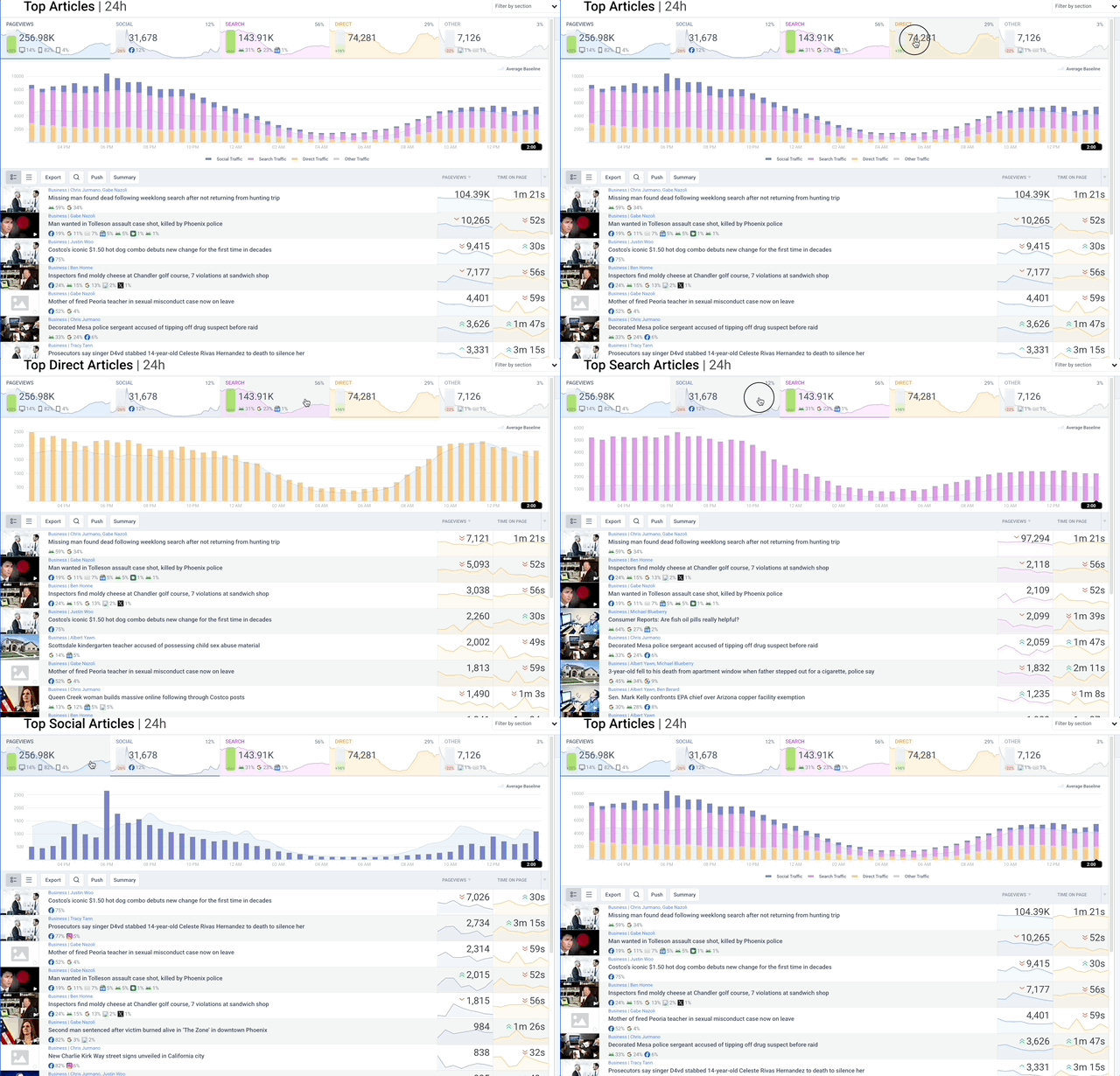
Social and Search don’t need much explanation. Direct includes pageviews from someone typing your site’s URL in the browser bar, clicking a bookmark, or opening your native app. It also includes “dark” traffic where no referral information was attached, such as with SMS links.. Other includes referrals from any other sites such as news aggregators or from push notifications or email newsletters, provided those links included UTM codes.
The only way to remove the referral category filter by clicking on the tile that says Pageviews.
Referral Source
Beyond the broad Referral Categories, there are also icons shown for more granular referral sources, like Facebook, Google or ChatGPT. If you want to filter articles by those more granular referrers like Facebook, you can accomplish it through the Filter By Sources view.
There are two ways to access this view, either by clicking on the icon of a referral source shown in one of the Social, Search, Direct and Other top cards or by navigating directly to the Filter By Source dashboard in the left rail navigation below “Top Articles,” as shown below.
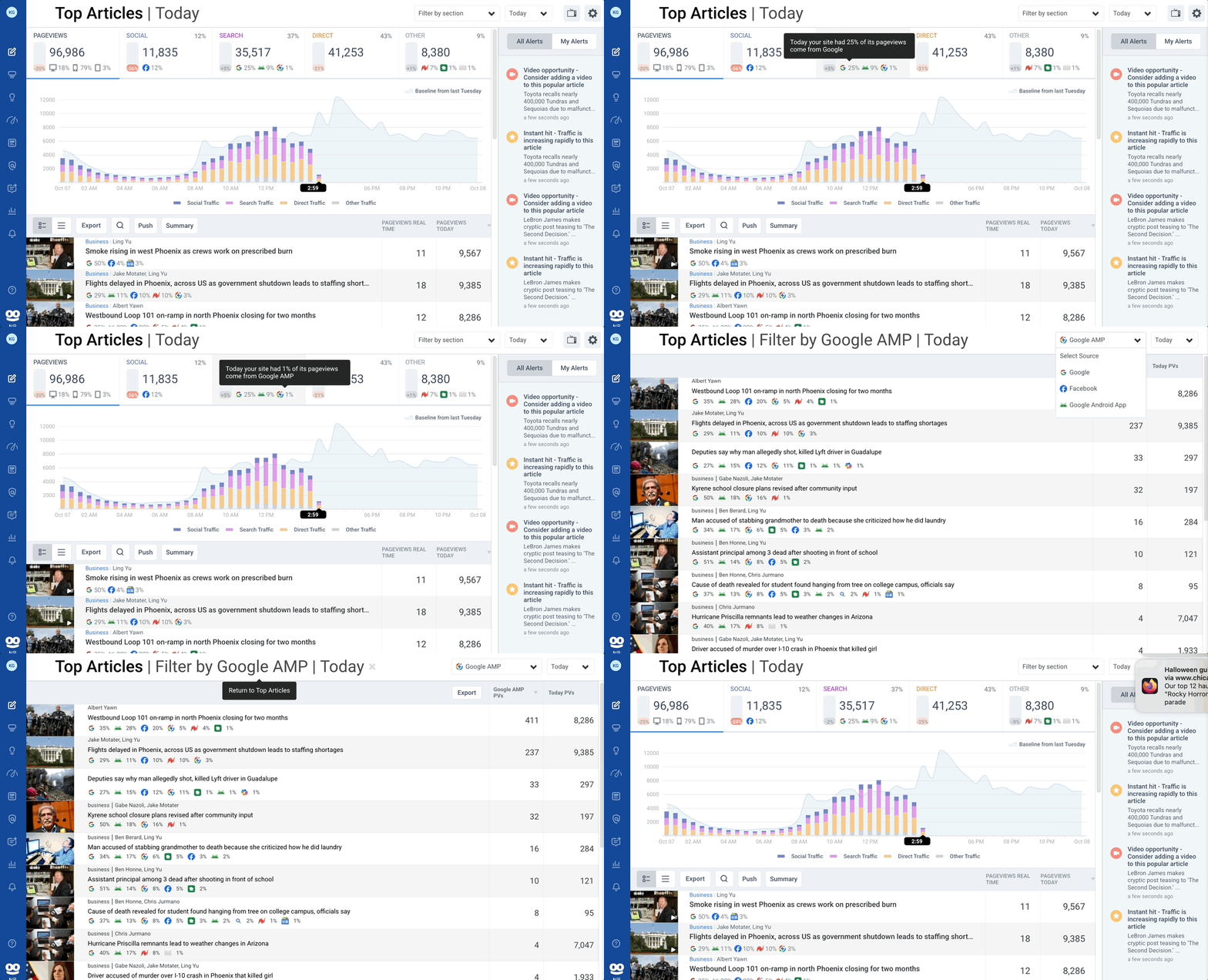
How you accessed the Filter by Sources view will determine its initial contents. If you accessed Filter by Sources view by clicking a referral icon from Top Articles, you will inherit that referral source and the date range from Top Articles (Today, Real-Time, 24 hr, 7 Day, 30 day). If you accessed that view directly, you will need to choose a referral source and you will be shown the last used date range.
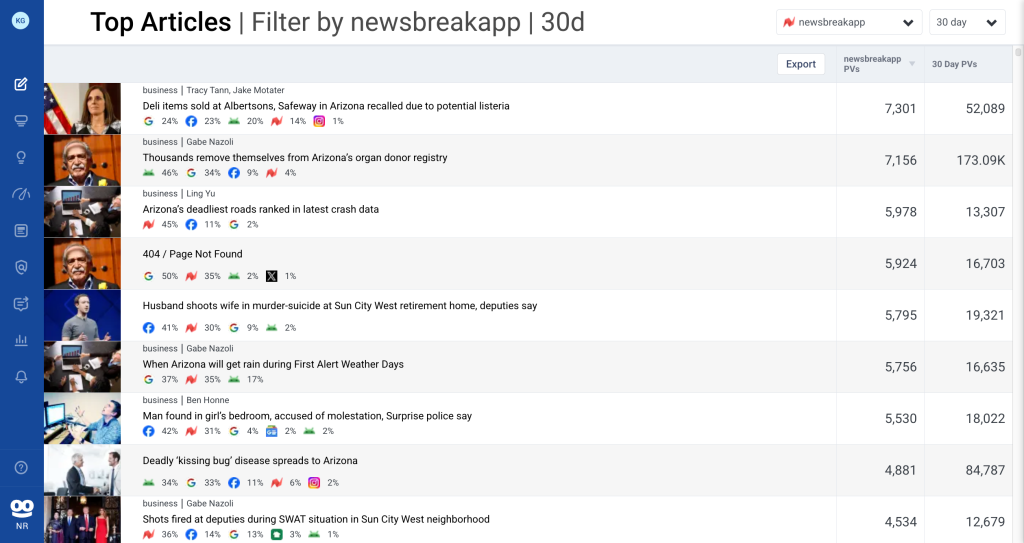
Here’s an example of sample data filtered by referral source Newsbreak on a 30-day view.
If you navigated from Top Articles clicking a top cards referral icon, you can return to the Top Articles view by hovering to the right of the date label in the header (“Today” etc) and clicking the X.
Re-filtering by Referral Source
Once users are on the Filter by Sources dashboard, they can easily switch sources and date ranges. Both controls are in pulldowns on the upper right of the page. The sources shown represent all significant traffic sources, usually the top 25-30, and are ranked from most to least popular.
Once filtered by the referral source and date range, articles will be displayed in descending order of engagement by pageviews attributed to that source. If a user filtered on Google search, for example, the article with the most Google search-attributed pageviews will be shown atop the list. There’s also a column for total pageviews regardless of source, and a user can re-sort articles based on this by clicking on the header text, labeled “Today PV” or “7 Day PV” etc.
The Filter by Sources dashboard does not update in realtime like Top Articles. Filter by Sources is a research and content strategy report rather than a realtime response tool.
Export
To review at scale, a user can export this data with the Export button on the top right. This will generate a CSV file with the following columns: Title, Date, First Seen (UTC), Image URL, URL, Author, Section, Email, Source Pageviews and Today Pageviews. Essentially, the CSV is an even more robust version of the dashboard.